What Are Developer Tools and How Do They Work?
Software developers rely on a wide range of tools to turn ideas into working applications. Writing code is only one part of the process. Developers also need ways to edit files, run programs, find errors, test changes, manage versions, inspect application behavior, automate repetitive tasks, and collaborate with other people.
These resources are commonly called developer tools.
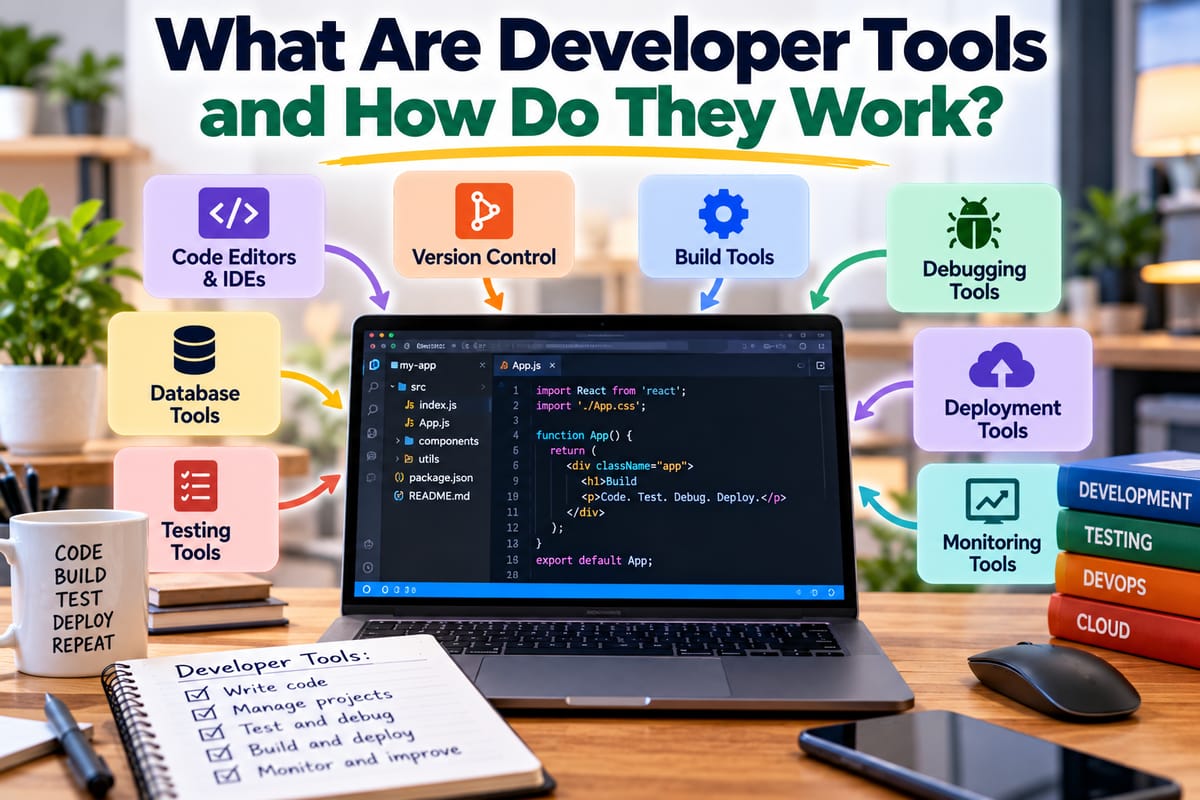
Developer tools can range from simple command-line utilities to sophisticated integrated development environments, debugging systems, testing frameworks, build tools, version-control platforms, and browser-based inspection tools. Each serves a particular purpose, but together they form the working environment in which software is created and maintained.
Understanding developer tools helps explain what happens behind the scenes when programmers build websites, mobile applications, desktop software, cloud services, games, and other digital products.
What Are Developer Tools?
Developer tools are software applications, utilities, frameworks, and services that help programmers create, test, debug, deploy, monitor, and maintain software.
They can help with tasks such as:
- Writing source code
- Managing project files
- Running programs
- Finding bugs
- Testing applications
- Managing dependencies
- Compiling code
- Automating builds
- Tracking changes
- Inspecting web pages
- Monitoring applications
- Managing databases
- Deploying software
- Collaborating with other developers
Some developer tools are used directly by programmers every day. Others operate in the background as part of automated development and deployment systems.
The broader software-development process determines how these tools fit together. The Complete Guide to Software Development Processes provides a broader view of the stages and activities involved in developing software.
Why Do Developers Need Tools?
Modern software can be extremely complex.
A relatively small application may contain thousands of lines of code, while large systems can contain millions of lines spread across numerous components.
Developers therefore need tools that reduce complexity and help them work systematically.
For example, a developer working on a web application might need to:
- Write code.
- Save and organize project files.
- Install external packages.
- Run the application locally.
- Inspect the browser output.
- Test functionality.
- Investigate errors.
- Commit changes to version control.
- Build the application.
- Deploy it to a server.
- Monitor its behavior after deployment.
Different tools can support each stage.
Without appropriate tools, many of these tasks would require much more manual work.
Categories of Developer Tools
Developer tools can be divided into several broad categories.
Common categories include:
- Code editors
- Integrated development environments
- Command-line tools
- Compilers
- Interpreters
- Debuggers
- Testing tools
- Version-control systems
- Build tools
- Package managers
- Database tools
- Browser developer tools
- Performance profilers
- Deployment tools
- Monitoring systems
- Collaboration platforms
These categories overlap.
A modern development environment may combine several of them into one application, while other workflows use separate specialized tools.
Code Editors
A code editor is a program designed for creating and modifying source-code files.
A basic editor may simply provide a place to type text. Modern code editors can provide much more.
Common features include:
- Syntax highlighting
- Code completion
- Automatic indentation
- Search and replacement
- File navigation
- Error highlighting
- Extensions
- Integrated terminals
- Version-control integration
Syntax highlighting makes different parts of code visually distinguishable.
For example, keywords, strings, functions, variables, and comments may appear differently, making complex code easier to read.
Code completion can also suggest functions, variables, methods, and other elements while the developer types.
Integrated Development Environments
An integrated development environment, commonly called an IDE, combines multiple development functions into one application.
An IDE may include:
- Code editing
- Project management
- Compilation
- Debugging
- Testing
- Version-control integration
- Dependency management
- Terminal access
Instead of switching between many separate applications, a developer can perform several tasks within one environment.
The exact features depend on the IDE and programming language.
An IDE can be particularly useful for large projects where developers need to navigate many files and understand relationships between different parts of an application.
Development Environments
A development environment is the collection of software, configuration, tools, and resources used to create and test an application.
It can include:
- A code editor
- Programming languages
- Compilers or interpreters
- Libraries
- Frameworks
- Package managers
- Databases
- Testing tools
- Operating-system utilities
- Environment variables
A developer may use a local computer as a development environment before software is moved to testing or production systems.
For a deeper explanation, What a Development Environment Is and How Developers Use Tools to Write, Run and Debug Code explores how these components work together.
Command-Line Tools
The command line allows developers to interact with computers by entering text-based commands.
A command-line interface can be used for tasks such as:
- Creating files
- Navigating directories
- Running programs
- Installing packages
- Starting development servers
- Running tests
- Building applications
- Managing version control
- Automating tasks
For example, a developer might use a command to start a local web application.
Command-line tools are particularly useful because they can be combined into scripts and automated workflows.
Compilers
A compiler translates source code from one programming language or representation into another form that a computer or runtime can execute.
For compiled languages, the compiler may transform source code into machine code or another intermediate representation.
A simplified process might look like:
Source Code → Compiler → Executable or Intermediate Code
Compilers can also identify certain errors during the compilation process.
For example, if the source code violates the language's syntax or type rules, the compiler may report an error before the program runs.
Interpreters
An interpreter executes code through a runtime system rather than following exactly the same compilation process used by traditionally compiled languages.
The distinction between compiled and interpreted languages can be more complicated in modern software because many languages use combinations of compilation, interpretation, virtual machines, and just-in-time compilation.
The important point for developers is that programming languages require mechanisms for turning written instructions into operations that the computer can execute.
Developer tools provide access to these mechanisms.
Debuggers
A debugger helps developers investigate how a program behaves while it runs.
Instead of simply seeing that an application produced the wrong result, a developer can use a debugger to examine what happened internally.
Debuggers commonly allow developers to:
- Pause execution
- Set breakpoints
- Inspect variables
- Step through instructions
- Examine call stacks
- Evaluate expressions
- Follow program flow
For example, if a variable unexpectedly contains the wrong value, a developer can pause the program and inspect how that value changed.
Debugging is a fundamental part of software development. What Debugging Is and How Developers Find, Diagnose and Fix Software Problems explains how developers systematically investigate and resolve software problems.
Testing Tools
Testing tools help developers determine whether software behaves as expected.
Tests can verify:
- Individual functions
- Components
- APIs
- Database interactions
- User workflows
- Performance
- Security-related behavior
Different types of tests serve different purposes.
Unit Testing
Unit tests examine small pieces of code, often individual functions or components.
Integration Testing
Integration tests examine how multiple components work together.
End-to-End Testing
End-to-end tests simulate larger user workflows across an application.
Performance Testing
Performance tests examine how software behaves under different workloads.
Testing tools can automatically run these checks and report failures.
Version-Control Tools
Software projects change constantly.
Developers add features, fix bugs, modify existing code, and experiment with different approaches.
Version-control tools help track these changes.
They allow developers to:
- Record modifications
- Compare versions
- Create branches
- Merge changes
- Restore previous versions
- Collaborate with other developers
Version control is particularly important for teams because multiple people can work on the same project without relying entirely on manual file sharing.
A version-control system also creates a history that can help developers understand how the code evolved.
Package Managers
Modern applications frequently depend on external libraries and packages.
A package manager helps developers install, update, remove, and manage those dependencies.
For example, a project might depend on libraries for:
- Web development
- Database access
- Authentication
- Data processing
- Image manipulation
- Testing
- Networking
Instead of manually downloading each library, developers can declare dependencies and use a package manager to install them.
Package managers can also track versions so that a project uses compatible releases.
Build Tools
Software projects often require multiple steps before an application is ready to run or deploy.
A build process may include:
- Compiling source code
- Combining files
- Optimizing assets
- Processing stylesheets
- Generating documentation
- Running tests
- Producing deployment packages
Build tools automate these operations.
Instead of manually performing every step, developers can run a defined build command.
This improves consistency and reduces repetitive work.
Linters and Code Quality Tools
Linters analyze source code for patterns that may indicate errors, inconsistencies, or violations of established coding conventions.
They may identify:
- Unused variables
- Suspicious expressions
- Formatting problems
- Potential bugs
- Naming inconsistencies
- Unreachable code
A linter may report an issue before the application runs.
This makes it a useful early feedback mechanism.
Code-formatting tools serve a related purpose by automatically applying consistent formatting rules.
Together, these tools can make large codebases easier to read and maintain.
Browser Developer Tools
Web developers frequently use developer tools built into modern web browsers.
These tools can help inspect and troubleshoot websites.
Common capabilities include:
- Inspecting HTML
- Examining CSS
- Viewing network requests
- Monitoring console messages
- Debugging JavaScript
- Measuring performance
- Inspecting storage
- Testing responsive layouts
A developer can select an element on a webpage and inspect the HTML and CSS controlling its appearance.
The network panel can show which files and resources a webpage requests.
The console can display errors and diagnostic messages.
These capabilities make browser developer tools especially valuable for frontend development.
Database Development Tools
Many applications depend on databases.
Database tools help developers work with stored information and database structures.
They may provide features for:
- Creating databases
- Designing tables
- Writing queries
- Viewing records
- Modifying data
- Managing indexes
- Monitoring queries
- Creating database migrations
A developer can use these tools to understand how application data is stored and retrieved.
Database tools can also help diagnose performance problems when queries become slow or inefficient.
API Development Tools
Modern software frequently communicates through APIs.
API tools can help developers:
- Send requests
- Inspect responses
- Test endpoints
- Examine headers
- Test authentication
- Validate data
- Automate API tests
For example, a developer building a mobile application may need to test how the application communicates with a backend server.
API-development tools make it easier to send controlled requests and examine the results.
Performance Profilers
An application can be functionally correct while still performing poorly.
Performance-profiling tools help developers identify where an application spends its time or consumes resources.
Depending on the application, developers may measure:
- CPU usage
- Memory usage
- Network activity
- Database queries
- Function execution time
- Rendering performance
- Disk activity
A profiler can help identify bottlenecks that would otherwise be difficult to locate.
For example, a developer may discover that one function consumes a disproportionate amount of processing time.
Monitoring and Observability Tools
Developer tools are not limited to local development.
Once software is deployed, teams need ways to understand how it behaves in real environments.
Monitoring and observability tools can provide information about:
- Application errors
- Response times
- Server health
- Resource consumption
- Traffic
- Availability
- Logs
- Distributed requests
This information can help teams identify problems after deployment.
Monitoring is particularly important for systems that need to remain available for customers around the clock.
Logging Tools
Applications often generate logs containing information about what happened during execution.
Logs can include:
- Error messages
- User actions
- Requests
- System events
- Authentication events
- Processing steps
- Service communication
Developers can use logs to investigate problems that are difficult to reproduce locally.
However, logging must be designed carefully. Applications should avoid unnecessarily recording sensitive information, and organizations need appropriate policies for storing and protecting logs.
Environment and Configuration Tools
Applications often behave differently depending on their environment.
For example, developers may use:
- Local development environments
- Testing environments
- Staging environments
- Production environments
Each environment can have different configuration settings.
Developer tools can help manage:
- Environment variables
- Configuration files
- Secrets
- Database connections
- API endpoints
- Feature settings
Separating configuration from source code can make applications easier to deploy across different environments.
Deployment Tools
Deployment tools help move software from development into environments where users or other systems can access it.
Deployment can involve:
- Building the application.
- Running automated tests.
- Packaging the software.
- Uploading or releasing it.
- Applying configuration.
- Starting services.
- Verifying the deployment.
Automation can make this process faster and more consistent.
Manual deployment may work for small projects, but larger systems often require automated and repeatable release processes.
DevOps Tools
DevOps combines practices associated with software development and IT operations.
DevOps tools can support:
- Continuous integration
- Continuous delivery
- Automated testing
- Infrastructure management
- Deployment
- Monitoring
- Collaboration
The goal is not simply to collect more software tools.
The tools support a broader workflow in which development and operations teams can collaborate more effectively.
How DevOps Connects Software Development With IT Operations provides a broader explanation of how these areas connect.
Continuous Integration Tools
Continuous integration, often abbreviated as CI, involves regularly integrating code changes into a shared project and automatically checking those changes.
A CI system may:
- Retrieve the latest code
- Install dependencies
- Build the project
- Run automated tests
- Perform code-quality checks
- Report failures
This allows developers to discover certain problems soon after changes are introduced.
Continuous Delivery and Deployment
Continuous delivery extends automated development workflows toward software release.
A system may automatically:
- Build an application
- Test it
- Package it
- Prepare it for deployment
Some organizations also automate the actual deployment process.
The degree of automation depends on the project's requirements and risk profile.
Documentation Tools
Documentation is another important part of software development.
Developers need to understand:
- How systems work
- How APIs behave
- How software should be configured
- How code should be used
- How applications should be deployed
Documentation tools can support:
- Code documentation
- API references
- Technical guides
- Project wikis
- Architecture documentation
- Tutorials
Good documentation can reduce the time developers spend trying to reconstruct information that could have been recorded clearly.
Collaboration Tools
Software development is often a team activity.
Collaboration tools can help developers communicate about:
- Tasks
- Code changes
- Bugs
- Design decisions
- Project requirements
- Releases
- Documentation
Common collaboration capabilities include:
- Issue tracking
- Code reviews
- Team messaging
- Project boards
- Pull requests
- Shared documentation
These tools help create visibility into what different team members are working on.
Code Review Tools
Code review allows developers to examine proposed changes before those changes become part of a shared codebase.
Reviewers may examine:
- Correctness
- Readability
- Security
- Performance
- Maintainability
- Testing
- Design consistency
Code-review tools typically display differences between the existing version and proposed changes.
Developers can leave comments, request modifications, and discuss implementation choices.
This creates another layer of quality control.
Security Developer Tools
Security considerations can be integrated into development through specialized tools.
These may analyze:
- Source code
- Dependencies
- Configuration
- Authentication
- Infrastructure
- Known vulnerabilities
Security tools can identify potential weaknesses before software reaches users.
For example, a dependency scanner may identify that a project uses a library version with a known vulnerability.
Security tools are most useful when combined with secure development practices rather than treated as a complete solution on their own.
Artificial Intelligence in Developer Tools
AI capabilities are increasingly being incorporated into development tools.
Depending on the product, AI-assisted tools can help developers:
- Generate code suggestions
- Explain unfamiliar code
- Create tests
- Summarize files
- Suggest fixes
- Search large codebases
- Generate documentation
- Detect possible problems
These capabilities can accelerate certain tasks, but generated output still requires human review.
Developers need to understand the code they accept, verify that it behaves correctly, and consider security, performance, licensing, and maintainability.
AI assistance therefore functions as another development capability rather than eliminating the need for programming knowledge.
How Developer Tools Work Together
The real value of developer tools often comes from how they connect.
Consider a simplified workflow:
Code Editor → Version Control → Build Tool → Automated Tests → Deployment → Monitoring
A developer writes code in an editor.
The changes are recorded through version control.
A build system prepares the application.
Automated tests check whether important behavior still works.
The software is deployed.
Monitoring tools then provide information about how the application behaves.
If something goes wrong, logs and debugging tools can help developers investigate the problem.
This creates a continuous feedback loop.
A Typical Developer Workflow
A modern development workflow might look something like this:
1. Plan the Change
The developer identifies what needs to be built or modified.
2. Create or Update Code
The developer uses an editor or IDE.
3. Run the Application
The developer tests the change locally.
4. Inspect Results
Developer tools help identify errors or unexpected behavior.
5. Run Automated Tests
Testing tools verify important functionality.
6. Review the Code
The developer or another team member examines the changes.
7. Commit the Changes
Version-control tools record the work.
8. Build the Application
Build tools prepare the software.
9. Deploy
Deployment systems release the software to the appropriate environment.
10. Monitor
Monitoring and logging systems provide feedback about the deployed application.
This workflow can be adapted to many different software-development approaches.
Developer Tools and Productivity
Developer tools can increase productivity by reducing repetitive work and providing immediate feedback.
For example, an automated test can perform a check in seconds that would otherwise require a developer to repeat the same steps manually.
Code completion can reduce repetitive typing.
Version control can make collaboration safer.
Build automation can eliminate manual release steps.
Debuggers can reveal program state without requiring developers to insert temporary code everywhere.
The productivity benefit comes from reducing unnecessary effort while improving visibility and consistency.
Developer Tools Do Not Replace Understanding
Tools are powerful, but they do not eliminate the need for technical knowledge.
A developer still needs to understand:
- Programming concepts
- Algorithms
- Data structures
- Software architecture
- Databases
- Networking
- Testing
- Security
- System behavior
A tool may report an error, but the developer still has to determine why the error occurred and what solution is appropriate.
Likewise, an automated code generator may produce code that compiles but does not meet the application's actual requirements.
Tools provide capabilities. Developers provide judgment.
Choosing Developer Tools
There are thousands of development tools available, and teams do not need all of them.
When choosing a tool, developers can consider:
- Programming language compatibility
- Project size
- Team experience
- Integration options
- Performance
- Security
- Cost
- Licensing
- Community support
- Documentation
- Automation capabilities
- Long-term maintenance
A tool should solve a real problem rather than be adopted simply because it is popular.
Avoiding Tool Overload
Using too many tools can create its own problems.
A development team may end up with multiple systems for:
- Task management
- Documentation
- Communication
- Testing
- Monitoring
- Code review
- Deployment
If these systems do not integrate well, developers may spend excessive time moving information between them.
A smaller collection of well-integrated tools can sometimes be easier to maintain than a large collection of specialized applications.
Open-Source and Commercial Tools
Developer tools can come from different sources.
Open-Source Tools
Open-source tools provide source code that can generally be inspected and, depending on their licenses, modified or redistributed.
They can be widely adopted because they may be free to use and supported by large communities.
Commercial Tools
Commercial tools may offer paid features, professional support, enterprise integrations, or specialized functionality.
Some tools combine open-source foundations with commercial services.
The appropriate choice depends on the organization's technical requirements, budget, security needs, and operational environment.
Developer Tools and Software Quality
Developer tools can contribute to software quality by providing multiple layers of feedback.
For example:
Editor: Identifies syntax or formatting issues.
Compiler: Checks whether code can be transformed successfully.
Linter: Identifies suspicious patterns.
Tests: Check expected behavior.
Debugger: Helps investigate runtime problems.
Code review: Provides human evaluation.
Monitoring: Reveals production behavior.
No individual tool guarantees quality.
Instead, multiple tools can work together to reduce the likelihood that problems remain undiscovered.
The Future of Developer Tooling
Developer tools continue to evolve alongside programming languages, cloud computing, artificial intelligence, automation, and new software architectures.
Development environments are becoming increasingly integrated.
Tools can now connect code editing, testing, version control, deployment, monitoring, and AI assistance into increasingly unified workflows.
At the same time, developers still need to understand the underlying systems.
As software becomes more automated, the ability to evaluate automated output and understand system behavior becomes increasingly important.
Building a Productive Development Workflow
Developer tools are best understood as parts of a larger system rather than isolated applications.
Code editors help developers write software. Compilers and interpreters turn instructions into executable behavior. Testing tools check functionality. Debuggers investigate problems. Version-control systems track changes. Build and deployment tools automate delivery. Monitoring systems reveal what happens after software reaches users.
When these tools are selected thoughtfully and connected to a clear development process, they can reduce repetitive work, improve feedback, support collaboration, and make complex software projects easier to manage.
The goal is not to use the greatest number of tools. It is to build a development workflow in which the right tools help developers move from an idea to reliable, maintainable software with greater clarity and control.