**What a Development Environment Is and How Developers Use Tools to Write, Run and Debug Code
Software does not usually go from an idea to a finished application in a single step. Developers need a collection of tools that helps them write source code, run programs, identify errors, test changes and understand how an application behaves.
This collection is commonly called a development environment.
A development environment can be as simple as a text editor and a command-line terminal or as sophisticated as a complete setup containing an integrated development environment, programming language runtimes, debuggers, testing frameworks, package managers, databases, containers and version-control tools.
The exact configuration depends on the programming language, application and development workflow. The underlying purpose is the same: give developers a controlled place to create, execute and improve software.
What Is a Development Environment?
A development environment is the collection of hardware, software, tools, configurations and services developers use to build and test applications.
A typical environment may include:
- A code editor or integrated development environment
- A programming language
- A compiler or interpreter
- A runtime environment
- Libraries and frameworks
- Package-management tools
- A terminal or command-line interface
- Debugging tools
- Testing tools
- Version-control software
- Databases
- Environment variables
- Build tools
- Local servers
- Containers or virtual machines
Not every project needs every component.
A web developer working on a small JavaScript project may need a code editor, Node.js, a browser and a package manager. A developer building a large enterprise application may need a database server, containerized services, automated testing tools and several development frameworks.
Why Development Environments Matter
A development environment gives developers a place to work on software without necessarily affecting the production version that customers use.
This separation is important.
Developers need to experiment, introduce changes, test new features and deliberately create errors while investigating problems. Doing this directly on a live production system could disrupt users.
A local or dedicated development environment provides a safer space for this work.
It also helps teams create more consistent workflows. Developers can use defined versions of programming languages, dependencies and tools so that software behaves more predictably across different machines.
The Main Parts of a Development Environment
Although development setups vary, several components appear frequently.
Code Editor
A code editor is where developers write and modify source code.
Basic editors provide features such as:
- Text editing
- Search and replace
- Syntax highlighting
- File navigation
Modern development environments can provide much more.
They may offer:
- Autocomplete
- Error detection
- Code navigation
- Refactoring
- Integrated terminals
- Debugging
- Version-control integration
- Extensions
- Intelligent code assistance
An integrated development environment, or IDE, combines many of these capabilities into one application.
Programming Languages
The programming language determines the syntax and rules developers use to express instructions to a computer.
Common languages include:
- JavaScript
- TypeScript
- Python
- Java
- C
- C++
- C#
- Go
- Rust
- PHP
- Ruby
- Swift
- Kotlin
Each language has its own development tools and runtime requirements.
Understanding What Is Programming and How Does It Work? provides useful background on how source code becomes instructions that computers can execute.
Compilers and Interpreters
Programming languages need mechanisms that allow computers to execute or otherwise process the code.
A compiler generally translates source code into another form, often producing machine code or an intermediate representation that can later be executed.
An interpreter executes code through a runtime system rather than following the same traditional compilation model.
Modern programming languages can use combinations of compilation, interpretation and just-in-time compilation.
The important point for developers is that their development environment needs the appropriate tools to transform or execute the code they write.
Runtime Environments
A runtime environment provides the components necessary for a program to execute.
For example, JavaScript intended for a web browser runs within a browser environment. JavaScript used for server-side applications may run within a runtime such as Node.js.
Python programs require a Python runtime, while Java applications typically rely on a Java runtime environment.
The runtime can provide access to system resources, standard libraries and other capabilities required by the application.
Package Managers
Modern software projects rarely contain every component they need in their own source code.
Developers commonly rely on external libraries and packages to provide functionality that would otherwise have to be built from scratch.
Package managers help developers install, update and manage these dependencies.
Examples include:
- npm for JavaScript and Node.js
- pip for Python
- Maven for Java
- Gradle for Java and related ecosystems
- Cargo for Rust
- NuGet for .NET
A package manager can also help record dependency versions so that a project can be reproduced more consistently on another machine.
The Terminal and Command Line
Many developers use a terminal as a central part of their workflow.
The command line allows them to execute instructions such as:
- Starting an application
- Installing dependencies
- Running tests
- Building software
- Managing files
- Running database commands
- Checking version-control status
- Starting development servers
For example, a developer might run a project through a command such as:
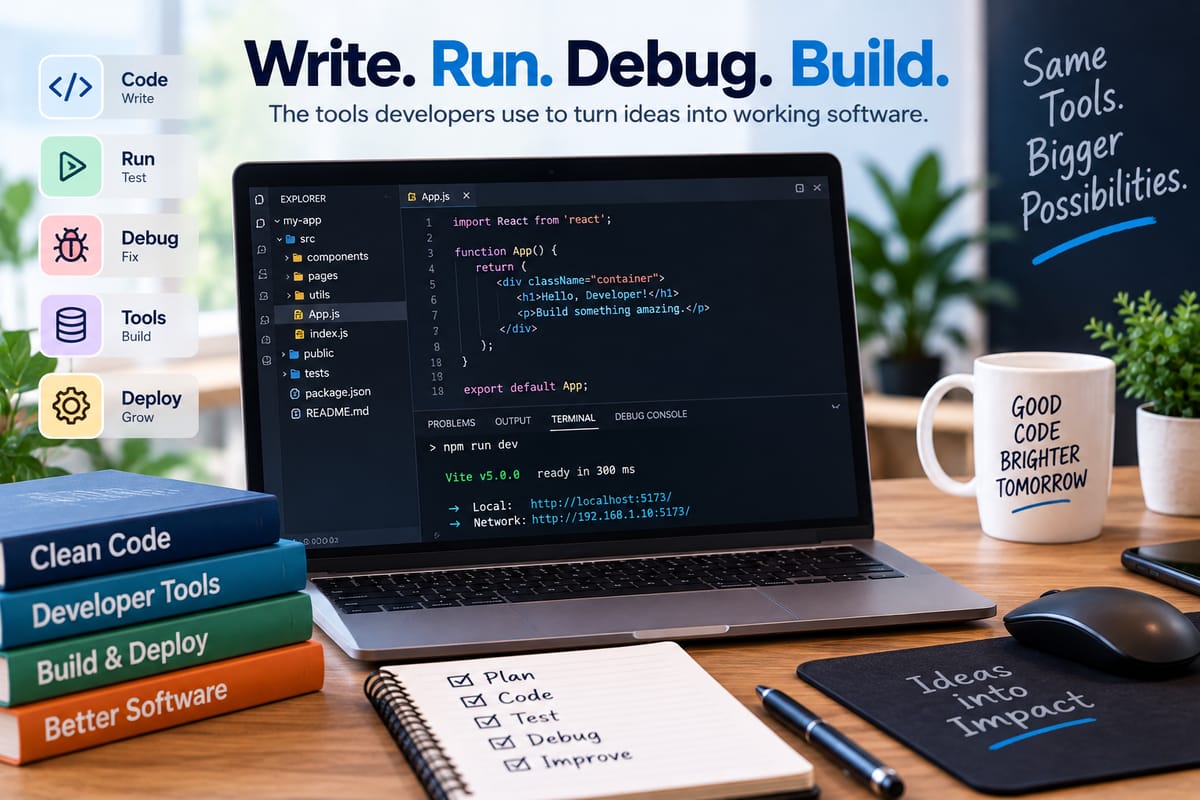
npm run dev
The exact command depends on the project.
Although graphical tools have become increasingly capable, command-line tools remain important because they can be automated and incorporated into development workflows.
Local Servers
Web developers often run applications on a local server during development.
Instead of making changes directly to a publicly accessible website, the developer runs the application on their own computer or within a controlled development environment.
The browser can then connect to the local application.
This allows developers to test:
- Web pages
- APIs
- Authentication
- Forms
- Database interactions
- Client-side behavior
- Server-side logic
Local development makes experimentation much safer and faster.
Development Databases
Applications frequently depend on databases to store information.
A development environment may include a local database or a separate development database server.
Developers can use it to test operations such as:
- Creating records
- Updating information
- Deleting records
- Running queries
- Testing database relationships
- Applying schema changes
Using a development database also helps prevent accidental modifications to production data.
Environment Variables and Configuration
Applications often require configuration values that should not be hard-coded directly into source files.
These can include:
- Database connection information
- API endpoints
- Application settings
- Service credentials
- Feature flags
Environment variables provide one common way of supplying configuration values to an application.
Developers can configure different values for development, testing and production.
Sensitive credentials should be handled carefully and should not be accidentally committed to public repositories.
Development, Testing and Production Environments
Software organizations commonly separate environments according to their purpose.
Development
The development environment is where developers write and experiment with code.
Testing
The testing environment is used to evaluate whether software behaves as expected.
Staging
A staging environment can provide a production-like environment where changes are evaluated before release.
Production
Production is the environment used by real customers or users.
The separation between these environments reduces the risk of unfinished development work reaching users.
How Developers Write Code
Writing code begins with translating a requirement or technical problem into instructions that a computer can execute.
Developers may start by creating files, functions, classes, components or other structures appropriate to the language and application.
Modern editors assist by highlighting syntax and identifying some errors as code is being written.
For example, an editor might flag:
- Missing punctuation
- Undefined variables
- Incorrect types
- Invalid imports
- Unused variables
- Syntax errors
These features provide immediate feedback before the program is even executed.
How Developers Run Code
Once code has been written, developers need to execute it and observe the result.
The method depends on the language and application.
A developer might:
- Open a terminal.
- Navigate to the project directory.
- Install or verify dependencies.
- Start the runtime or development server.
- Open the application.
- Interact with the software.
- Observe the output.
For a command-line program, the result might appear directly in the terminal.
For a web application, the developer may interact with the application through a browser.
For a mobile application, the program might run on a simulator, emulator or physical device.
How Developers Debug Code
Code does not always behave as expected.
A program might crash, return incorrect data, display the wrong information or produce an unexpected result.
Debugging is the process of investigating these problems and determining what needs to change.
Developers may use:
- Breakpoints
- Debug consoles
- Stack traces
- Log messages
- Variable inspection
- Exception information
- Profiling tools
- Automated tests
The process involves more than simply finding a line that looks suspicious. Developers need to understand what the program was supposed to do, what it actually did and why the two outcomes differ.
For a deeper explanation, see What Debugging Is and How Developers Find, Diagnose and Fix Software Problems.
Breakpoints and Step-by-Step Execution
A debugger can allow developers to pause a program at a particular line using a breakpoint.
Once execution stops, the developer can inspect the current state.
They might examine:
- Variable values
- Function arguments
- Objects
- Call stacks
- Program flow
The developer can then execute the program one statement at a time or continue until another breakpoint is reached.
This can reveal exactly where the application's behavior begins to differ from expectations.
Logging as a Development Tool
Logging is another common way to understand what software is doing.
Developers can add messages that record important events or values during execution.
For example:
User authentication started
Account lookup completed
Payment request submitted
Logs can be particularly useful when a problem occurs in a complex process.
However, excessive logging can make output difficult to interpret. Developers therefore need to choose useful information and avoid exposing sensitive data.
Testing Inside the Development Environment
Testing allows developers to evaluate software systematically rather than relying entirely on manual interaction.
Common forms of testing include:
Unit Testing
Tests individual functions or components.
Integration Testing
Tests how multiple components work together.
End-to-End Testing
Tests larger workflows from the perspective of the application's user or external system.
Static Analysis
Examines source code without necessarily executing it to identify potential problems.
Development environments can integrate these tests into commands or automated workflows.
Version Control and Development Environments
Version control is another major part of many development environments.
Tools such as Git allow developers to record changes, create branches and collaborate with other developers.
A typical workflow might look like:
Create branch → Write code → Test → Commit → Push → Review → Merge
This allows developers to experiment without immediately changing the stable version of the project.
Version control can also make it easier to return to previous versions when a change causes unexpected problems.
Keeping Development Environments Consistent
One challenge for development teams is ensuring that software behaves similarly across different computers.
A project might work on one developer's machine but fail on another because of differences in:
- Operating-system versions
- Programming-language versions
- Package versions
- Database configurations
- Environment variables
- System dependencies
Teams can reduce these inconsistencies by documenting requirements and using configuration files, lockfiles, containers or standardized development setups.
Containers and Virtualized Environments
Containers provide a way to package an application and many of its dependencies into a consistent environment.
A developer can use a container to run a specific version of a runtime, database or supporting service without installing everything directly on their computer.
This can be particularly useful for applications that depend on multiple services.
Virtual machines provide another form of environment isolation by running a complete operating system within a virtualized system.
Both approaches can help teams reproduce development conditions more consistently.
Integrated Development Environments
An IDE brings many development tools together.
Depending on the product and programming language, an IDE may include:
- Code editing
- Project navigation
- Compilation
- Running applications
- Debugging
- Testing
- Version-control integration
- Refactoring
- Dependency management
- Code analysis
Instead of switching between many separate applications, developers can perform much of their work within one interface.
However, experienced developers may still combine an IDE with terminals, specialized tools and other applications.
Code Formatting and Linting
Development environments can also automate code-quality checks.
A formatter applies consistent formatting rules to source code.
A linter examines code for potential problems, style violations or suspicious patterns.
These tools help teams maintain consistent codebases.
They can identify issues such as:
- Unused variables
- Incorrect syntax patterns
- Potential bugs
- Inconsistent formatting
- Problematic imports
Automated checks can be particularly valuable when many developers contribute to the same project.
Build Tools
Some projects require multiple steps before they can be executed or distributed.
Build tools can automate tasks such as:
- Compiling source code
- Bundling files
- Processing assets
- Generating optimized builds
- Running tests
- Producing deployment packages
A development environment can provide commands that allow developers to run these processes locally before changes are sent to a testing or production system.
Performance Testing and Optimization
A program can be functionally correct while still performing poorly.
Developers may therefore use development tools to measure:
- CPU usage
- Memory consumption
- Network requests
- Database queries
- Response times
- Rendering performance
- Application startup time
Profiling tools can help identify which parts of an application consume the most resources.
The broader process of improving speed and resource efficiency is covered in How Developers Optimize Software Performance and Application Speed.
Development Environments and Team Workflows
A development environment works best when it fits into the team's overall software development process.
Teams need to decide how developers create branches, run tests, review code and prepare releases.
They may also define standards for programming languages, dependencies, formatting, testing and deployment.
These practices are part of the broader software lifecycle described in the Complete Guide to Software Development Processes.
Reproducing a Development Environment
When a new developer joins a project, setting up the development environment can take considerable time if the process is undocumented.
A well-organized project may provide:
- Setup instructions
- Required software versions
- Dependency files
- Configuration examples
- Database setup scripts
- Environment-variable documentation
- Test commands
- Build commands
Automation can make this process considerably easier.
The goal is to allow a developer to move from a newly configured computer to a functioning project with as few manual steps as practical.
Common Development Environment Problems
Development environments can introduce their own challenges.
Dependency Conflicts
Two packages may require incompatible versions of another dependency.
Incorrect Configuration
A missing or incorrectly configured environment variable can prevent an application from starting.
Version Mismatches
Different versions of a programming language or runtime can produce different behavior.
Missing Services
An application may depend on a database or external service that has not been started.
Platform Differences
Software can behave differently across operating systems.
Outdated Dependencies
Old libraries may contain bugs, compatibility problems or security vulnerabilities.
Identifying these issues is part of maintaining a reliable development workflow.
What Makes a Good Development Environment?
A useful development environment should make it reasonably easy to:
- Write code
- Understand existing code
- Run applications
- Test changes
- Debug problems
- Manage dependencies
- Track changes
- Reproduce the project
- Prepare software for deployment
It should also match the needs of the project rather than adding unnecessary complexity.
A small application does not necessarily need an elaborate infrastructure. A large distributed system may require substantially more tooling.
Development Environments Continue to Evolve
Development environments have changed considerably as software projects have become more complex.
Cloud-based development environments, containers, automated testing, remote development tools and AI-assisted coding systems are increasingly becoming part of modern workflows.
At the same time, traditional tools such as terminals, debuggers, compilers, interpreters and version-control systems remain fundamental.
The technology may change, but developers continue to need the same basic capabilities: a way to write software, execute it, observe its behavior and systematically improve it.
From Source Code to Working Software
A development environment provides the practical workspace that connects source code with a functioning application.
Developers write code using editors and IDEs, execute it through appropriate runtimes or build systems, test the results, investigate problems with debugging tools and use version control to manage changes.
Other tools handle dependencies, databases, configuration, performance analysis and deployment preparation.
Together, these components create a repeatable workflow in which developers can turn ideas into software while identifying and correcting problems along the way. A well-structured development environment does not eliminate the challenges of programming, but it gives developers the tools and feedback they need to solve those challenges more efficiently and build software in a controlled, collaborative way.