**How Backups Protect Data When Devices Are Lost
Losing a phone, laptop, tablet, or external storage device can be stressful for more than just the cost of replacing the hardware. Modern devices often contain years of photos, documents, contacts, work files, personal records, and other information that may be difficult or impossible to recreate.
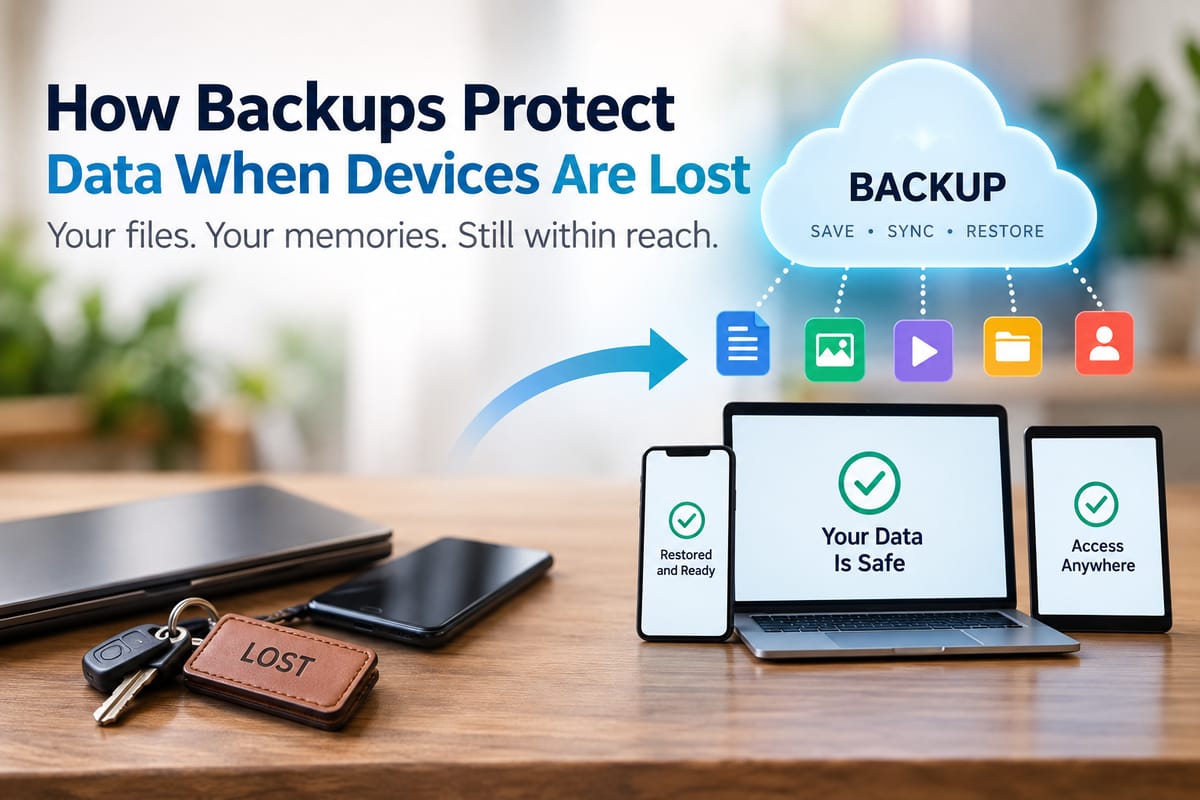
A reliable backup can change the situation dramatically. When important information exists somewhere other than the lost device, replacing the hardware does not necessarily mean losing the data stored on it.
Backups are therefore an important part of protecting digital information and maintaining access when devices are lost, stolen, damaged, or otherwise unavailable.
What Happens to Data When a Device Is Lost?
When a device disappears, the information stored exclusively on that device may disappear with it from the user's immediate reach.
A lost laptop, for example, might contain:
- Work documents and spreadsheets
- Personal photographs and videos
- Downloaded files
- School or business records
- Browser data
- Saved projects
- Locally stored contacts
- Application data
Whether that information can be recovered depends on where copies exist and how the device was configured.
If there is no backup, recovering files may be extremely difficult. If current copies are stored securely elsewhere, the loss of the physical device becomes primarily a hardware and access problem rather than a complete data-loss event.
Backups Create a Second Copy of Important Information
The fundamental purpose of a backup is straightforward: maintain another copy of data that can be restored if the original becomes unavailable.
That second copy might be stored on an external drive, another computer, a network storage system, or a cloud-based service. Some backup strategies use multiple locations so that one failure does not eliminate every copy.
A useful overview of different approaches can be found in this Data Backup Guide.
The key principle is that a backup should be sufficiently separate from the original data that losing the device does not also eliminate the backup.
Cloud Backups Can Help After Device Loss
Cloud storage and cloud backup services can be particularly useful when a smartphone or computer is lost.
If files have been synchronized or backed up to a trusted cloud service, a person may be able to access those files from a replacement device after signing into the appropriate account.
For example, someone who loses a laptop while traveling may purchase or borrow another computer and regain access to backed-up documents without waiting for the original laptop to be recovered.
Cloud services can therefore provide both a backup location and a convenient way to restore access to information.
However, synchronization and backup are not always the same thing. A synchronized folder can mirror changes or deletions across devices, while a dedicated backup system may retain older versions that can be restored later.
Understanding that distinction is important when designing a reliable backup strategy.
External Drives Provide Another Layer of Protection
External hard drives and solid-state drives can also be used to maintain copies of important information.
For example, a person might periodically back up photographs, documents, and other files from a laptop to an external drive. If the laptop is subsequently lost, the files may still be available on the separate storage device.
The limitation is that an external drive can be lost, damaged, or stolen as well. Keeping the backup in the same physical location as the original device can therefore leave both copies vulnerable to the same event.
For particularly important information, maintaining copies in separate locations can provide additional protection.
Good File Organization Makes Recovery Easier
Having a backup is valuable, but knowing what has been backed up also matters.
Poorly organized files can make restoration unnecessarily difficult. Important documents may be scattered across downloads folders, desktops, removable drives, applications, and miscellaneous cloud folders.
A consistent system for naming, grouping, and storing files can make it easier to determine which information needs to be protected.
The Complete Guide to File Management, Storage and Organization provides a broader look at how digital information can be organized and maintained.
Good organization also makes it easier to identify files that are especially important and ensure that they are included in backup routines.
Backups Do Not Replace Data Security
A backup protects against certain forms of data loss, but it does not automatically make information secure.
A backup containing sensitive documents could itself become a target if someone gains unauthorized access to it. For this reason, backup systems should be considered part of a broader data security strategy.
Strong passwords, multi-factor authentication, encryption where appropriate, software updates, access controls, and careful handling of sensitive information can all contribute to protecting stored data.
For more context, see What Is Data Security and How Can Digital Information Be Protected?.
Security is especially important for cloud accounts because access to an account may provide access to many years of stored information.
Encryption Can Protect Backups
Encryption can add another layer of protection by making stored information difficult to read without the appropriate key or credentials.
This can be particularly important when backups contain sensitive financial documents, identification records, private photographs, business information, or confidential work.
Encryption does not eliminate every risk, however. Users still need to protect account credentials and recovery methods. Losing the credentials required to decrypt or access a backup can make recovery difficult.
The objective is to create a system where legitimate users can reliably regain access while unauthorized people cannot easily obtain the same information.
Automatic Backups Reduce the Risk of Forgetting
One of the biggest weaknesses of manual backups is that people can forget to perform them.
A backup created six months ago may not contain important files created or modified since then. Automatic backup systems can reduce this problem by periodically copying new or changed information without requiring the user to remember every time.
The appropriate frequency depends on how quickly information changes.
Someone who rarely creates new files may have different requirements from a business that generates important documents every day. The more frequently valuable information changes, the more frequently it generally needs to be backed up.
Version History Can Help Recover Older Files
Backups can be particularly useful when they preserve previous versions of files.
Imagine that an important document is accidentally deleted or overwritten shortly before a laptop is lost. A backup system with version history may retain an earlier copy.
This provides protection not only against lost hardware but also against certain accidental deletions, unwanted changes, and file corruption.
Version history is therefore an important feature to consider when evaluating a backup system.
Backups Can Help After Theft
Device theft presents two separate problems: the owner may lose access to the hardware, and sensitive information stored on the device could potentially be exposed.
A current backup helps address the first problem by allowing important information to be restored to another device.
Security measures such as device encryption, strong authentication, remote-locking capabilities, and account protection can help address the second.
These measures work together. A backup is designed primarily to preserve availability of information, while security controls help protect that information from unauthorized access.
A Lost Device Does Not Have to Mean Lost Memories
Photos and videos are among the types of information people often value most after losing a device.
A smartphone may contain thousands of personal images accumulated over many years. If those files exist only on the phone, losing it can mean losing irreplaceable memories.
Regularly backing up photographs to a separate location can greatly reduce this risk. The same principle applies to videos, recordings, creative projects, and other personal files that cannot simply be downloaded again.
For especially valuable memories, maintaining more than one copy can provide additional resilience.
Backups Should Be Tested
Creating a backup does not necessarily mean that restoration will work when needed.
A backup could be incomplete, outdated, corrupted, inaccessible, or configured incorrectly. Regularly checking backups and occasionally testing whether files can actually be restored can reveal problems before an emergency occurs.
A simple test might involve restoring several representative files and confirming that they open correctly.
For more comprehensive backup systems, restoration testing can be incorporated into a regular maintenance routine.
What to Back Up
Not every file on every device has the same importance. A practical backup strategy should prioritize information that would be difficult, expensive, or impossible to replace.
This may include:
- Personal photographs and videos
- Important documents
- Financial records
- Work files
- School projects
- Creative work
- Contacts
- Device settings
- Important application data
- Password or recovery information stored through appropriate secure systems
Some applications can reinstall automatically, while others contain locally stored information that requires separate protection. Understanding what can be recreated and what cannot can help determine backup priorities.
Backups Are Part of Staying Safe Online
Digital safety involves more than avoiding suspicious links or creating strong passwords. Protecting access to information also means preparing for hardware failures, theft, accidental deletion, and other disruptions.
A broader approach to everyday digital protection is covered in Staying Safe in the Digital World.
Combining secure accounts with reliable backups creates a stronger overall strategy than relying on either approach alone.
A Simple Backup Routine
For many people, a practical backup routine can be built around a few basic steps:
- Identify important information. Determine which files and data would be difficult to replace.
- Choose a backup method. Consider cloud backups, external storage, or a combination of approaches.
- Automate where possible. Automatic backups can reduce the chance of forgetting.
- Keep copies separate. Avoid placing every copy in the same physical location.
- Protect access. Use strong authentication and appropriate security controls.
- Check backup status. Make sure backups are actually running and completing successfully.
- Test restoration. Periodically confirm that stored files can be recovered.
The exact setup will vary according to the type of device, amount of data, budget, and importance of the information.
Preparing Before a Device Disappears
The best time to establish a backup system is before a device is lost.
Once a phone or computer has disappeared, there may be limited options for recovering information that was stored exclusively on it. A backup created beforehand provides another path to that data.
A well-designed system does not have to be complicated. Even a straightforward combination of automatic cloud backup and a separate physical copy can provide meaningful protection for many types of personal information.
Ultimately, backups change the consequences of losing a device. The hardware may still need to be replaced, accounts may need to be secured, and access may need to be restored, but important information does not necessarily have to disappear with the device. By keeping current copies, organizing files carefully, protecting backup accounts, and periodically testing recovery, users can make their digital information much more resilient to unexpected loss.