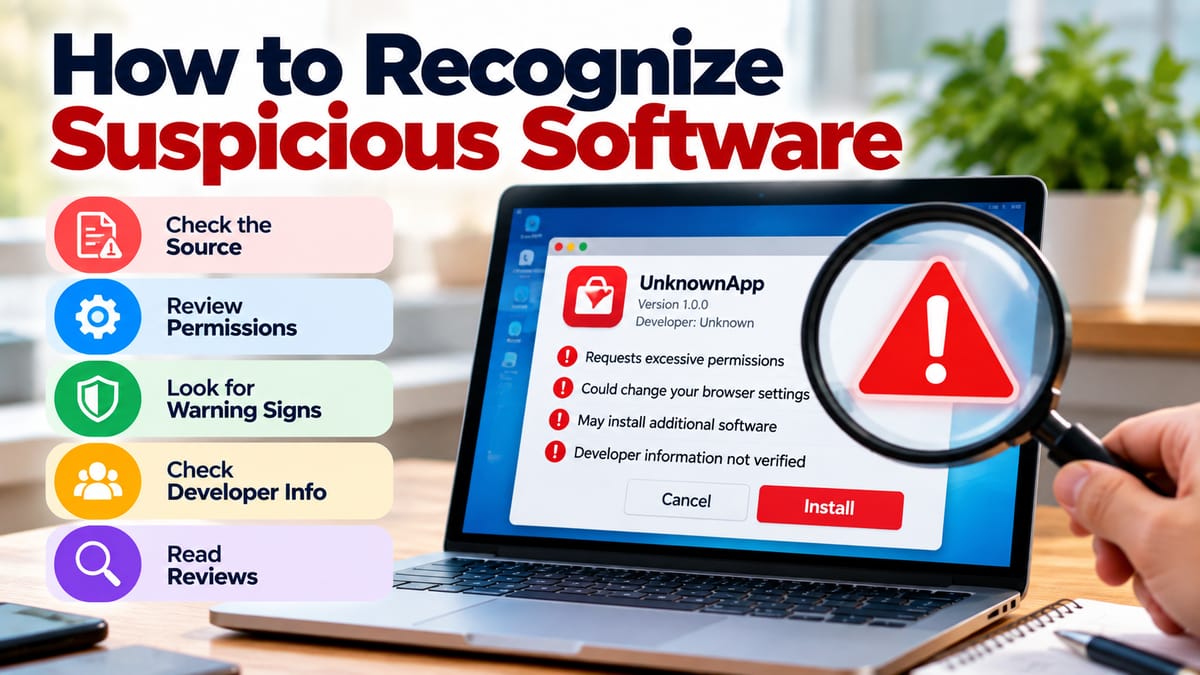
How to Recognize Suspicious Software
Software has become part of almost every aspect of modern life. People install applications for communication, entertainment, work, education, shopping, banking, file management, and countless other tasks. Most software is designed to be useful, but not every application can be trusted.
Suspicious software can create security and privacy problems, expose personal information, damage files, slow down devices, or provide unauthorized access to a computer or smartphone. In some cases, a program may appear completely legitimate while hiding unwanted behavior beneath a familiar-looking interface.
Learning how to recognize suspicious software before installing or using it is therefore an important part of basic digital security.
What Makes Software Suspicious?
Suspicious software is software that displays warning signs suggesting it may be unsafe, deceptive, unwanted, or significantly different from what it claims to be.
Not every warning sign proves that an application is malicious. A legitimate program can have aggressive advertising, poor documentation, or an unusual installation process. However, several warning signs appearing together should encourage greater caution.
Suspicious software may attempt to:
- Steal passwords or personal information
- Monitor user activity without appropriate permission
- Install additional unwanted programs
- Change browser settings
- Display excessive advertisements
- Encrypt or damage files
- Disable security protections
- Collect unnecessary data
- Redirect users to unfamiliar websites
- Gain access to accounts or devices without authorization
Understanding these possibilities makes it easier to evaluate software before giving it access to a device.
Check Where the Software Comes From
One of the first things to examine is the source of the software.
Applications downloaded from official developer websites, established app stores, or reputable software repositories generally provide more information about their origin than files obtained from unknown websites.
This does not mean that every application in an official marketplace is automatically safe. However, a recognizable distribution channel often provides additional information such as developer details, reviews, update history, permissions, and reporting mechanisms.
Be particularly careful with software discovered through:
- Random pop-up advertisements
- Unfamiliar download websites
- Unsolicited email attachments
- Unexpected messages containing download links
- Peer-to-peer file-sharing sources
- Websites offering illegally modified applications
- Pages claiming that your device has an urgent problem
The source does not establish whether a program is safe by itself, but it provides an important starting point for evaluating its credibility.
Be Careful With Unexpected Software Offers
A common warning sign is software that appears unexpectedly.
For example, a website may suddenly display a message claiming that a computer is infected and immediately needs a particular security application. Another advertisement might claim that a browser, media player, or system component is outdated and needs an immediate download.
These messages can create urgency deliberately.
Legitimate software updates can certainly be important, but users should normally verify updates through the application's own settings, the operating system's update system, or the developer's official website rather than clicking an unexpected warning.
A useful rule is simple: do not let a surprise message determine what software you install.
Look Closely at the Developer
Before installing unfamiliar software, investigate who created it.
A legitimate developer will generally provide identifiable information about the company or organization, documentation, support information, privacy policies, and details about the application's purpose.
Warning signs can include:
- No identifiable developer
- A recently created or suspicious-looking website
- Missing contact information
- Poorly written descriptions
- Conflicting company names
- An application that imitates the name of another program
- Claims that are difficult to verify
- No meaningful documentation
A developer's identity should make sense in relation to what the software claims to do.
For example, an application advertised as professional accounting software but published by an unrelated and unidentified developer deserves additional scrutiny.
Watch for Fake or Imitation Software
Some suspicious applications are designed to resemble legitimate programs.
They may use similar names, logos, colors, icons, or descriptions to make users believe they are installing a familiar application.
This can be particularly effective when people search for software quickly and choose the first download they encounter.
Before downloading, compare the application's:
- Exact name
- Developer name
- Official website
- Logo and branding
- Description
- Version information
- Download source
Small differences can sometimes reveal that an application is not the genuine product.
Examine the Software's Permissions
Permissions provide another important clue.
An application may legitimately need access to certain parts of a device. A navigation application, for example, may need location access. A messaging application may need access to contacts or notifications.
Problems arise when the requested permissions do not appear connected to the application's purpose.
Ask yourself:
Why does this application need this access?
Be cautious when a simple utility requests extensive access to unrelated information or device functions.
Depending on the operating system, permissions may involve:
- Contacts
- Location
- Camera
- Microphone
- Files and storage
- Notifications
- Messages
- Accessibility features
- Device administration
- Network access
Excessive or unexplained permissions do not automatically prove malicious behavior, but they are worth investigating before granting access.
Pay Attention During Installation
The installation process can reveal a great deal about an application.
A trustworthy installer should generally explain what is being installed and provide reasonable control over important settings.
Be cautious if an installer:
- Attempts to install several unrelated programs
- Changes your browser without clearly explaining why
- Automatically selects additional software
- Hides important options
- Uses misleading buttons
- Repeatedly pressures you to accept something
- Displays unusual warnings
- Prevents you from reviewing installation choices
Bundled software is not always malicious, but unexpected additions can introduce unwanted applications, browser extensions, advertisements, or other changes.
Following practices described in a guide to installing software safely can help reduce these risks before an unfamiliar program reaches your device.
Be Suspicious of Excessive Urgency
Social engineering often relies on urgency.
A suspicious application or website might claim that you must install something immediately or your device will stop working. It may warn that an account is about to be deleted or that a security problem must be fixed within seconds.
The objective is often to prevent the user from thinking carefully.
Legitimate software can have genuine security updates, but users should still have an opportunity to verify the update through a trusted channel.
Whenever software demands immediate action, pause and investigate before proceeding.
Look at Reviews Carefully
Reviews can provide useful information, but they should not be treated as definitive proof of safety.
Pay attention to patterns rather than a single rating.
For example, several users reporting that an application:
- Installs unexpected programs
- Displays excessive advertisements
- Changes browser settings
- Collects unexpected information
- Crashes repeatedly
- Behaves differently from its description
may provide useful warning signals.
At the same time, extremely positive reviews can also be misleading if they appear repetitive, generic, or unrelated to the application's actual functionality.
Look for detailed reviews that describe specific experiences.
Check Whether the Software Is Still Supported
Software that has not been updated for a long time can create security and compatibility problems.
Developers release updates for many reasons, including:
- Fixing security vulnerabilities
- Correcting software bugs
- Improving compatibility
- Adding features
- Addressing performance problems
- Updating outdated components
An application with no visible development activity may deserve additional scrutiny, particularly if it handles sensitive information.
However, an old application is not automatically malicious. Some specialized programs are intentionally updated infrequently. The important question is whether the software's maintenance history makes sense for its purpose.
Understand the Difference Between Suspicious and Malicious
It is useful to distinguish between software that is suspicious and software that is confirmed to be malicious.
Suspicious software has warning signs that justify additional investigation. Malicious software is specifically designed or used to cause harm, steal information, gain unauthorized access, disrupt systems, or perform other harmful activities.
Malware can take many forms, including viruses, worms, ransomware, spyware, trojans, and other unwanted or harmful programs.
A complete guide to malware and malicious software provides broader context on the different types of threats and how malicious programs can affect devices.
The distinction matters because not every poorly designed or intrusive application is malware. Some programs may simply be unwanted, deceptive, overly aggressive with advertising, or poorly maintained.
Watch for Unexpected Device Behavior
Sometimes suspicious software becomes noticeable only after installation.
Changes in device behavior can provide important clues.
Potential warning signs include:
- Sudden performance problems
- Frequent crashes
- Unexplained pop-ups
- New browser extensions
- Changed search settings
- Unknown applications appearing
- Excessive network activity
- Battery draining unusually quickly
- Unexplained storage usage
- Security tools being disabled
- Files being modified unexpectedly
One symptom alone may have an ordinary explanation. Several unusual changes appearing shortly after installing a particular application deserve closer attention.
Be Careful With Cracked and Pirated Software
Unauthorized copies of paid software can be especially risky.
Cracked applications may be modified to bypass licensing systems, and users often have limited ability to verify what else has been changed inside the software.
A modified installation package could potentially contain unwanted or harmful components.
The promise of getting expensive software for free may therefore come with significant security and privacy risks.
Using legitimate software sources also makes it easier to receive official updates and support.
Check the Software's Privacy Practices
Security is not the only concern.
An application can function as advertised while collecting more information than users expect.
Before installing software that handles sensitive information, look at its privacy documentation and consider:
- What information does it collect?
- Why is the information collected?
- Is data shared with other organizations?
- How long is information retained?
- Can users delete their data?
- Does the application require an account?
- What device permissions does it request?
Privacy practices can vary significantly between applications that appear to perform similar functions.
Consider the Application's Purpose
The permissions and behavior of software should make sense in relation to its purpose.
A photo-editing application may reasonably need access to photographs selected by the user. A simple calculator probably has little reason to request access to contacts, messages, or a microphone.
This principle can be described as contextual consistency.
The more closely an application's behavior matches its stated purpose, the easier it is to understand why particular permissions or capabilities are necessary.
When there is a major mismatch, investigate further.
Use Security Software as an Additional Layer
Security tools can help identify known threats, suspicious files, and potentially unwanted programs.
Antivirus and endpoint security software can provide another layer of protection, particularly when users download files from different sources or work with large numbers of applications.
However, security software should not replace good judgment.
No security tool should be treated as a guarantee that every application is safe. Users should still verify software sources, review permissions, maintain updates, and avoid suspicious downloads.
For a broader overview of protective practices, the Guide to Software Security explains how software security principles help protect applications, systems, and users.
Keep Your Operating System and Apps Updated
Updates are an important part of software security.
Operating system and application developers regularly release patches that address vulnerabilities and other problems. Delaying important updates can leave known weaknesses unaddressed.
Automatic updates can be useful when they come from trusted software sources.
At the same time, users should remain cautious about fake update notifications. A browser pop-up telling you to download an update is not necessarily an official update.
When possible, verify updates through the application's built-in update mechanism or the operating system's normal update settings.
Know When an Application Needs Deeper Security
Applications that handle sensitive information require additional scrutiny.
Examples include software used for:
- Banking
- Password management
- Business operations
- Healthcare information
- Financial records
- Private communications
- Authentication
- Cloud storage
These applications can have greater consequences if compromised.
Understanding what application security is and how software is protected from cyber threats can help users understand why secure development, vulnerability management, authentication, encryption, and access controls matter.
What to Do If You Already Installed Suspicious Software
If you suspect that an application is unsafe, avoid continuing to interact with it unnecessarily.
Depending on the situation, sensible steps may include:
- Disconnecting the device from the internet if there are signs of active malicious behavior.
- Avoiding sensitive activities such as banking on the potentially affected device.
- Running a trusted security scan.
- Removing the suspicious application if appropriate.
- Checking for unfamiliar browser extensions or applications.
- Updating the operating system and legitimate security software.
- Changing important passwords from a trusted device if account credentials may have been exposed.
- Monitoring important accounts for unusual activity.
- Restoring the device from a trusted backup when necessary.
- Seeking professional technical assistance if the problem cannot be resolved safely.
The appropriate response depends on what the software has done and what information may have been exposed.
A Simple Checklist for Evaluating Software
Before installing unfamiliar software, take a moment to ask:
- Who created it?
- Where did I find it?
- Does the developer appear legitimate?
- Does the application have a clear purpose?
- Do its permissions make sense?
- Does the installer offer unexpected extras?
- Does the application have a credible update history?
- Are there detailed and consistent user reviews?
- Does its privacy policy make sense for what it does?
- Is the download being pushed through an unexpected warning or advertisement?
- Is there a legitimate alternative from a trusted source?
These questions take only a few minutes but can prevent significant problems.
Suspicious Software Is Easier to Spot When You Slow Down
The biggest protection against suspicious software is often simple caution. A convincing name, familiar-looking icon, or urgent warning can make an application appear trustworthy, but appearances alone are not enough.
Checking the source, developer, permissions, installation process, privacy practices, update history, and device behavior provides a much clearer picture.
Software does not have to look obviously dangerous to deserve scrutiny. Sometimes the warning signs are subtle: an unexplained permission, an unexpected browser change, an unusual installer, or a download that comes from a source you cannot verify.
Taking a few extra minutes before installing unfamiliar software can make the difference between adding a useful application to a device and introducing an avoidable security or privacy problem.